

Product Manufacturer: Mountain
Price: $199 RRP
Estimated Time With Gear: 10 weeks
Where to buy:
Mountain,
JB Hi-Fi
What Is It? Streaming and content-creation controller with 12 customizable display keys
Compatible With: Windows via Base Camp software
Mountain keyboards have been a favourite peripheral maker of mine over the past few years. If you checked out my review of their keyboard and mouse last year, you’d see how impressed I was. With the release of the DisplayPad—a Stream Deck alternative—I was keen to get hands-on with their latest device.
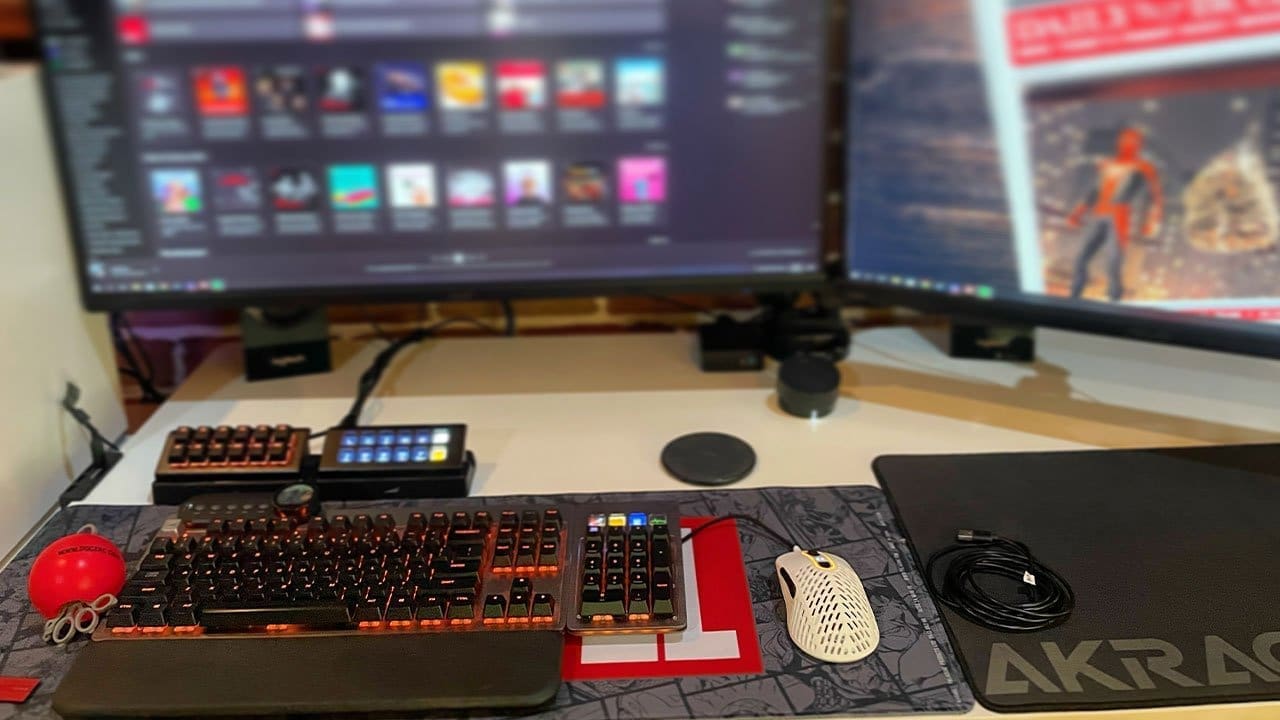
I enjoyed the usefulness of the Everest Max numpad display buttons; the DisplayPad is an advancement of that design, and adding pictures and folders to the 104×104px screens was a breeze. Setup was easy—the hardest part was deciding what I wanted quick access to. For my first profile, I added functional tools showing GPU, CPU, RAM and HDD percentages, plus shutdown and sleep, a clock, play/pause, mute, network speed, screen snip and a folder for recent projects. All of this was simple in the Base Camp software.
After some use I wanted changes, and the drag-and-drop feature made it trivial to rearrange keys (after I accidentally shut down the PC one too many times). I later discovered folders to access additional screens without switching profiles.


Specs
- Colour: Midnight Black
- Display Keys: 12 × 104×104px
- Image Formats: Animated GIF, JPG, PNG, BMP
- MCU: Cortex M0
- Interface: USB 2.0
- Dimensions: 14.7 × 8 × 6.7 cm
- Materials: Aluminium plate, ABS bottom cover, rubber pad
- Warranty: 2 years
- Number of Profiles: ∞
- Display: 4.5″ 800×240px IPS
- Polling Rate: 1000 Hz / 1 ms
- Connector: USB Type-C
- Cable Length: 2 m
- Weight: 127 g (538 g incl. stand)
- Software Support: Base Camp™ (Windows only)
- Included Accessories: Stand w/ rubber pad, 2 m USB Type-C to USB Type-A cable, Quick Start Guide
Mountain’s Base Camp software lets you change just about everything on the DisplayPad with ease. Setup was fast; the bigger decision was what to use it for. You can choose from default icons or upload custom ones. Moving icons is simple drag-and-drop. There are macro options—I set up a couple for PowerPoint presentations. Profiles can be switched manually or via a key on the DisplayPad. I mainly used one profile and a second for streaming.
Mountain’s DisplayPad comes with a sturdy, non-slip stand that stays put. It can also mount to the full range of Mountain keyboards. After rearranging my desk, I opted for the stand, offset from my main setup. The design affords plenty of flexibility, and the included cable tidies helped finish the layout cleanly.

Performance was as expected—on par with other Mountain gear I own. It feels solid and was easy to mount. The software is straightforward, and I’ve enjoyed seeing system info at a glance while gaming or doing daily tasks. The heavy-duty cables feel premium. I’ve had no major issues; the only hiccup was a control quirk with OBS, though I couldn’t tell if it was Base Camp or OBS. The other “issue” was self-inflicted: I originally put sleep and power on the top row and accidentally hit them while reaching past the DisplayPad.
The DisplayPad’s unboxing is a highlight. Mountain aims for sustainability and the packaging reflects this. While there is some plastic, it’s fully recyclable, and the unboxing experience is genuinely pleasant—plus the boxes are handy for storage.
Overall, the DisplayPad has performed fantastically. It’s simple enough that it’s become part of my everyday PC use. Putting frequently used functions on the screens and customising them is easy, and creating new profiles takes just a few clicks. I enjoy watching it boot with the PC, and powering off without reaching for the tower is a simple pleasure. I haven’t streamed with it yet, but the options for creators are obvious—and the OBS integration is excellent once set up correctly. I’ve enjoyed my time with the DisplayPad and look forward to testing more with it.

(A review unit was supplied for the purposes of this review.)